
Generate API Keys
Create public and server keys automatically with just a few clicks.
Generate and manage your Google Maps API keys for your store locator website. Get started in just a few clicks and unlock the power of Google Maps.

A simple and secure way to create and configure Google Maps API keys
for your Agile Store Locator website.
Create public and server keys automatically with just a few clicks.
Keys are restricted to your website and server from creation.
Review and manage your keys in your own Google Cloud project.
Review API status, quotas and usage in Google Cloud Console.
Apply website, server IP and API restrictions for better security.
Connect Google Maps to your Agile Store Locator website.
Follow the guided setup from your WordPress dashboard.
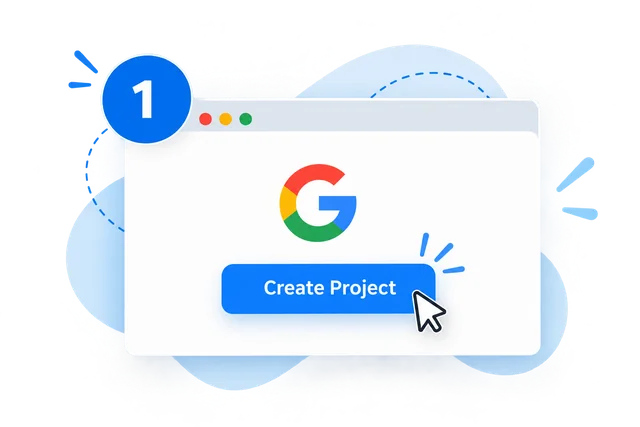
Select or create a Google Cloud project, then review billing.
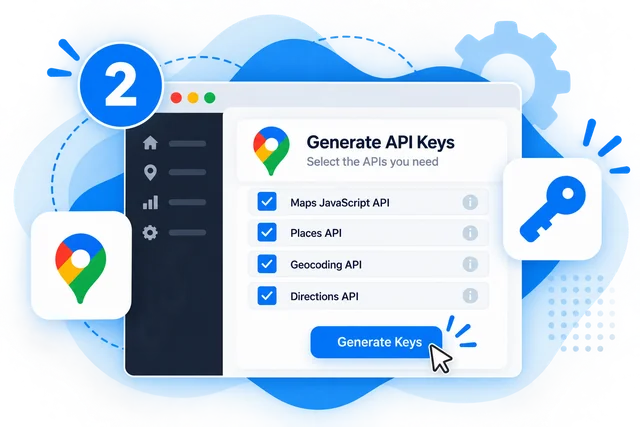
Approve your settings and optional limits to create restricted public and server keys.
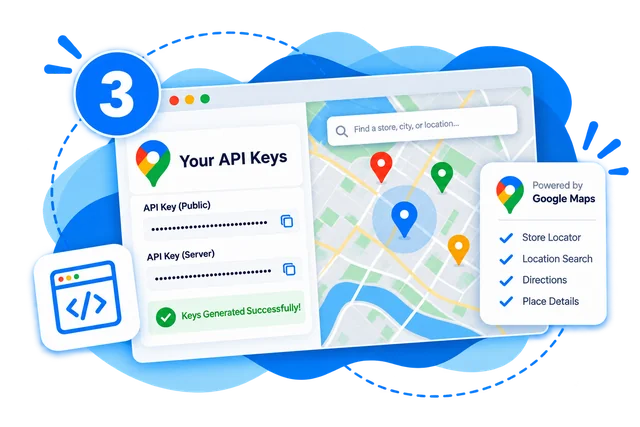
Return to WordPress and click Check connection to verify and save your keys.
Bring powerful location features to your website with Google Maps and Agile Store Locator.
Get Started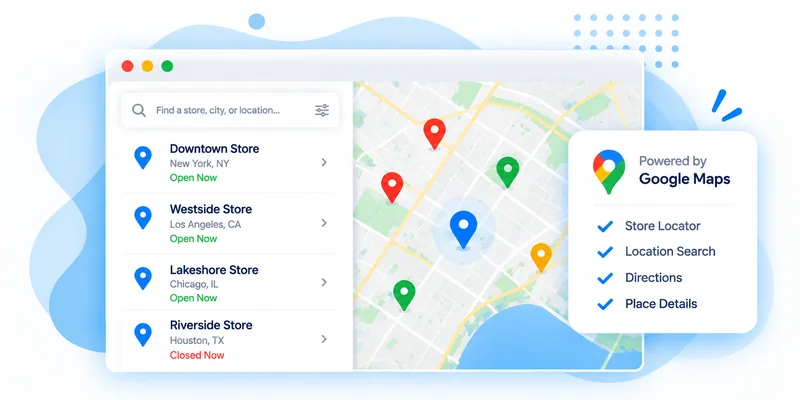
Save time and configure Google Maps through one guided process.
Fewer manual steps to configure your Google Cloud project.
Separate browser and server keys with purpose-specific restrictions.
Review optional daily limits before applying project-wide changes.
Step-by-step guides and dedicated support when needed.
Start with Agile Store Locator, and explore more tools for your location-based website.
Interactive store maps, search, and directions.
Explore location directories and business listings.
Location-based features for WooCommerce.
Sync your location data easily.
In WordPress, open Agile Store Locator → Dashboard → Manage Map → Google Maps.
Choose Connect Google Maps to begin your secure setup session.
Google bills Maps usage to the billing account linked to your chosen project. Optional quota protection reduces risk but does not guarantee a $0 bill. Your Agile Store Locator license and hosting are separate.
This setup enables Maps JavaScript API, Places API (Legacy), Geocoding API and Directions API (Legacy). Google may require an eligible existing project for legacy APIs. Places (New) and Routes require separate setup.
The public key is restricted to the website URLs approved during setup, including subdomains if selected. To use it elsewhere, review its restrictions in Google Cloud. Quotas are shared across the entire project.
Start from your WordPress dashboard. Confirm your website and whether to include subdomains. The guided service applies those website restrictions to the public key and the confirmed server IP restrictions to the server key.
It requests Google Cloud access to list or create projects, read billing accounts, link an account with your consent, enable APIs, inspect and optionally apply confirmed quotas, and create restricted keys. It does not collect your payment card details.
Temporary setup records are encrypted. The service removes its stored Google access token after successful key creation, and expired records are periodically deleted. Keys are transferred to WordPress for verification and saving. Resources and billing changes already made in Google Cloud remain until you manage or remove them.
Contact AgileLogix support using the link below. You can also enter existing API keys manually in the plugin. To remove authorization, use your Google Account’s third-party connections settings; this does not undo previous Cloud changes.